How to Add Journal Entries with Image Scan and Voice Dictation
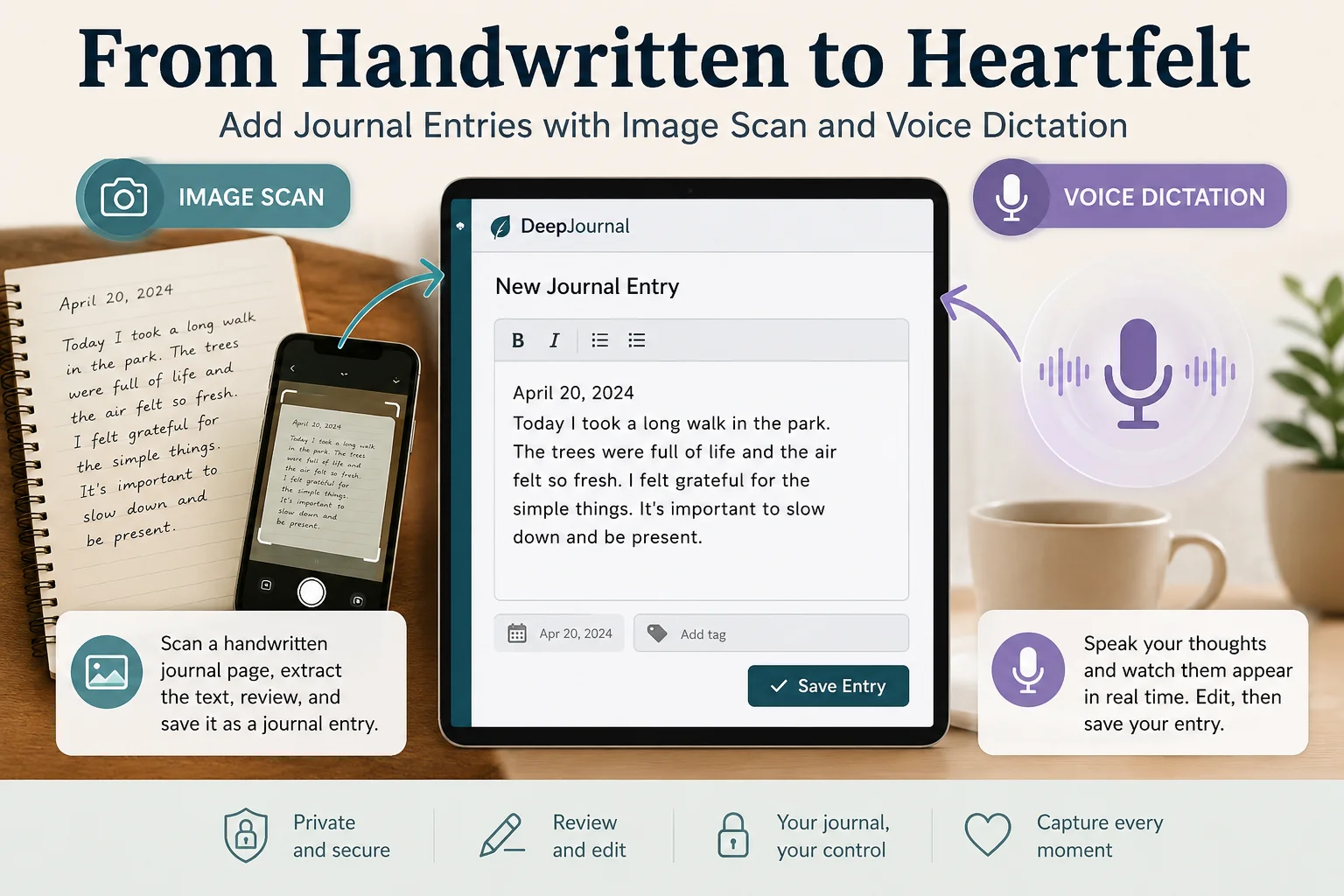
DeepJournal lets you turn handwritten journal pages into editable entries and capture your thoughts through live voice dictation. This guide shows you how to use both tools, review your text, and save it into your journal with confidence
Overview
Using Image Scan and Voice Dictation in DeepJournal
DeepJournal gives you more than one way to create a journal entry. You can type as normal, speak your thoughts aloud using voice dictation, or upload a photo of a handwritten journal page and turn it into editable text.
This guide walks you through the two assisted journaling tools:
- Image Scan, for handwritten pages
- Voice Dictation, for speaking directly into your journal
Both are designed to make journaling easier while still keeping you in control of the final entry.
Before You Begin
To use either tool:
- Log in to your DeepJournal account.
- Open the Journal page.
From there, you can choose whether to scan a handwritten page or dictate your thoughts by voice.
Turning a Handwritten Page into a Journal Entry
If you already write in a physical notebook, DeepJournal can help you bring those pages into your digital journal. You upload a photo, the app extracts the text, and you review it before saving it as a real entry.
1. Scan or Choose a Photo
On the Journal page, click:
Scan a handwritten Journal Page
Your device will then open a file picker.
- On a mobile phone, this may open your camera so you can take a photo straight away.
- On a desktop or laptop, you will usually choose an image that already exists on your computer.
Select a clear photo of one handwritten journal page.
2. Review the Image Preview
After choosing the image, DeepJournal shows you a preview so you can make sure you selected the correct page.
You can also choose a Date written on page.
This is useful when the page was written on an earlier day and you want the final journal entry to reflect that original date.
3. Upload It as a Private Draft
Once the preview looks right, click:
Upload draft
The image is saved privately as a temporary draft. It is not yet a journal entry, and it is not treated as public media.
4. Extract the Handwritten Text
In your draft list, open the uploaded image and click:
Extract text
DeepJournal will read the handwriting and convert it into editable text.
Once the extraction finishes, you will see the text result on screen.
At this stage, nothing has been saved as a final journal entry yet. This is still a review step.
5. Edit the Text and Confirm the Entry
Read through the extracted text carefully. Handwriting recognition can make mistakes, especially if the photo is dark, blurry, or the handwriting is difficult to read.
You can:
- Correct words or sentences
- Add anything that was missed
- Remove any extraction errors
You may also choose or adjust the journal entry date.
If no entry date is set, DeepJournal uses:
- The date you selected when uploading the draft, or
- Today’s local date if no earlier date was provided
When everything looks right, click:
Confirm
DeepJournal then creates a real encrypted journal entry from the text.
After that:
- The temporary image draft is removed
- The uploaded image file is deleted
- The confirmed text remains safely stored as your journal entry
Important to Know
There are two different actions in the image flow:
- Extract text reads the image and gives you editable text
- Confirm creates the actual journal entry
So, if you extract the text but do not confirm it, no final journal entry is created.
You can also delete a draft manually at any point if you decide not to keep it.
Using Voice Dictation
Voice Dictation lets you speak naturally while DeepJournal turns your words into text in real time. This can be useful when you want to capture thoughts quickly without stopping to type.
1. Start Dictating
In the journal text area, click:
Dictate
The app prepares a secure, short-lived speech connection in the background. The first time you use it, your browser will ask for permission to use your microphone.
Allow microphone access to continue.
Once connected, the button changes to:
⏹ Stop dictating
2. Speak Naturally
Start talking into your microphone.
As you speak, your words appear in the journal text box in real time.
A few useful details:
- Any text already in the box is kept
- New speech is added after your existing text
- You can stop and start dictation again whenever you like
- If you restart, DeepJournal continues appending to the current entry rather than replacing it
This makes it easy to pause, gather your thoughts, and continue.
3. Stop Dictation
When you are finished speaking, click:
Stop dictating
The text stays in the journal box so you can:
- Edit it
- Add more manually
- Save the entry as normal
Common Issues and How to Fix Them
Image Scan Problems
Upload fails
Check that:
- The file is one of these formats:
- .jpg
- .jpeg
- .png
- .webp
- The image is below the upload limit of 10 MB
The extracted text is poor
Try taking the photo again with:
- Better lighting
- The page lying flat
- The page filling more of the frame
- Fewer shadows across the writing
A clearer image usually produces a much better text result.
I extracted the text, but no journal entry appeared
That is expected.
You still need to click:
Confirm
Only confirming creates the final journal entry.
Voice Dictation Problems
Voice input will not start
Try:
- Clicking Dictate again
- Checking that you are still logged in
Voice authentication failed
Try starting dictation again. The temporary voice connection may not have been issued correctly on the first attempt.
No microphone access
Your browser needs permission to use your microphone.
Check your browser’s microphone settings and make sure access is allowed for DeepJournal.
Connection blocked by policy
This is a technical site configuration issue. An administrator or developer may need to allow:
wss://api.elevenlabs.io
in the site’s content security policy.
Quick Reference
To scan a handwritten page
Scan → Preview → Upload draft → Extract text → Edit → Confirm
To dictate by voice
Dictate → Speak → Stop → Review → Save entry normally